Connecting to a Mac from a Windows computer via Addigy
To connect to a LiveDesktop session from a Windows device, you will need to download and use a third-party client which supports VNC.
For this example, and as a general recommendation, we will be using Remote Desktop Manager, a remote control client that supports Apple's Remote Management service beyond normal VNC specifications. You can download Remote Desktop Manager here: https://remotedesktopmanager.com/home/download. Devolutions, the company which produces Remote Desktop Manager, offers unlimited free usage of the app by creating a free account.
Of course, there are many other VNC clients that may work with LiveDesktop. Please feel free to use any client that you find works well for you.
Once you have installed Remote Desktop Manager, follow these steps to connect via LiveDesktop.
- Enable LiveDesktop on the Integrations page. More information can be found in our article Addigy LiveDesktop Overview.
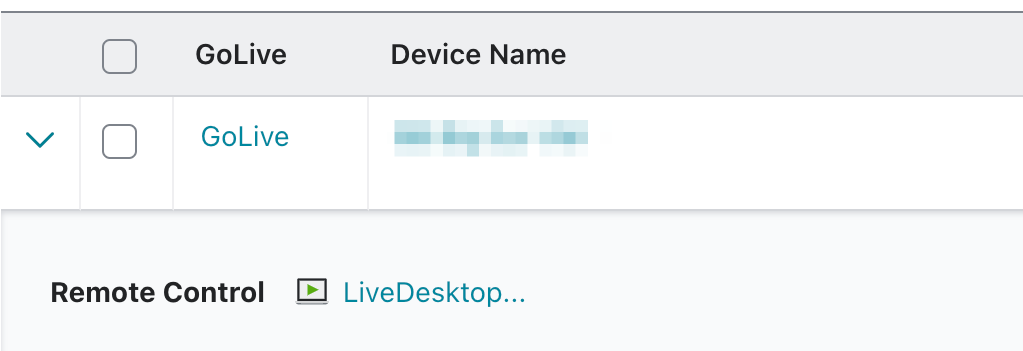
- Click the LiveDesktop icon on the Devices page or within a GoLive session to start a new session.
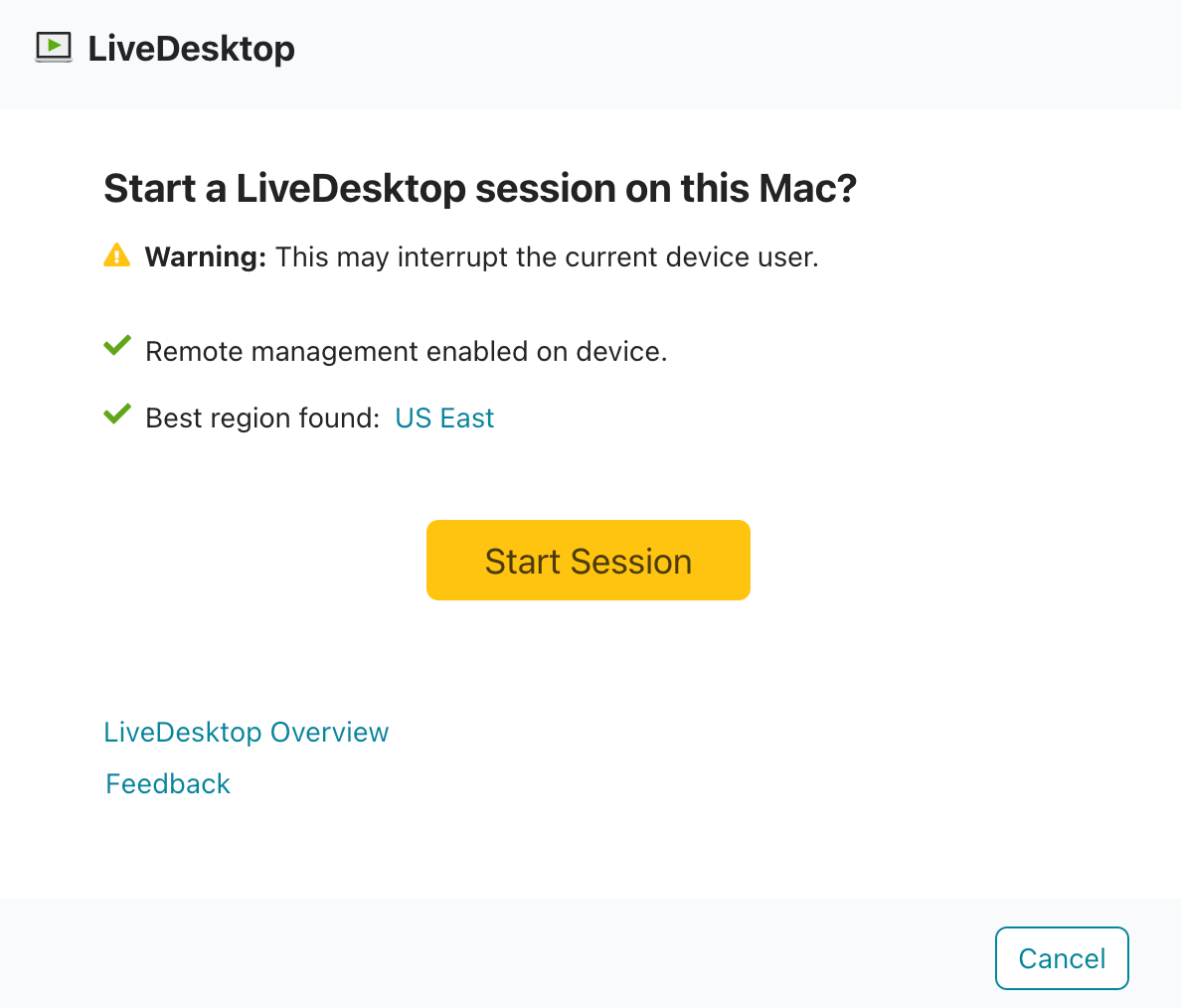
- From the LiveDesktop session modal window, select the Start Session button.
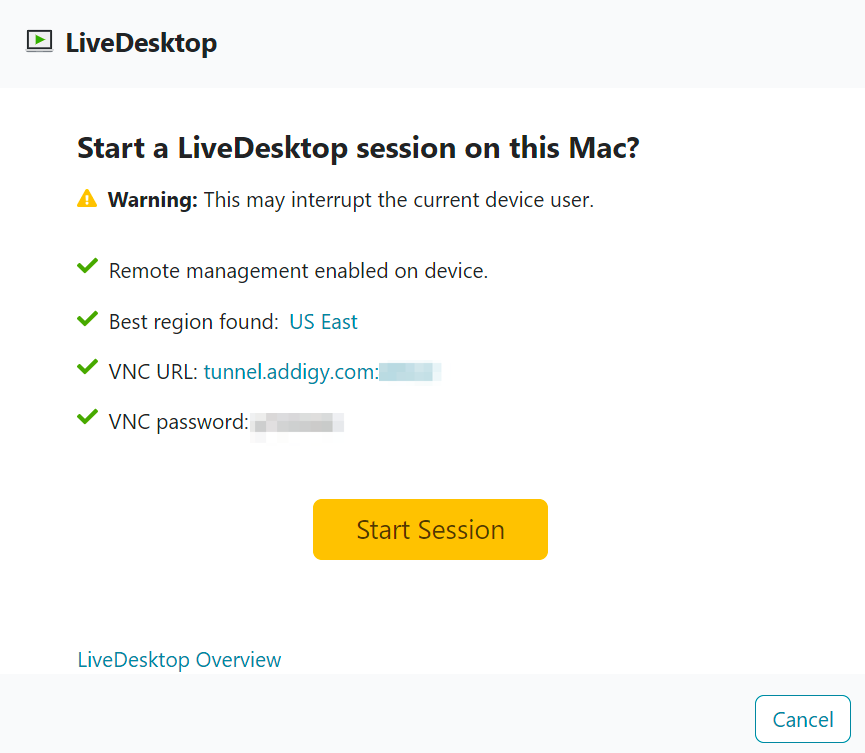
- A VNC URL and VNC password will appear.
Note: Depending on the VNC client, the VNC password may not be needed. It is not needed for Remote Desktop Manager.
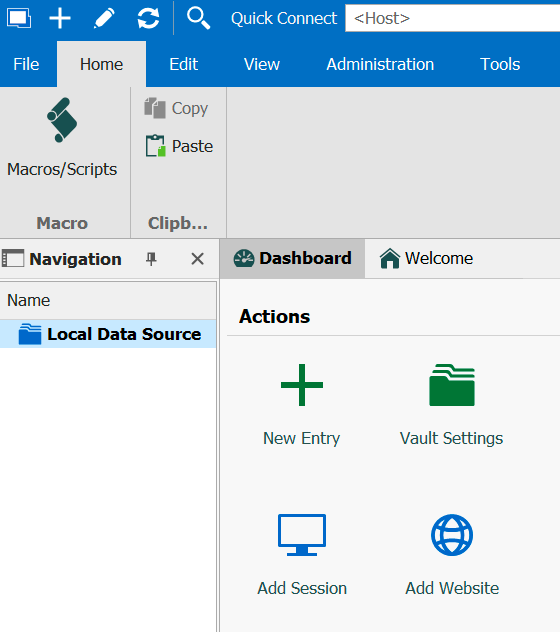
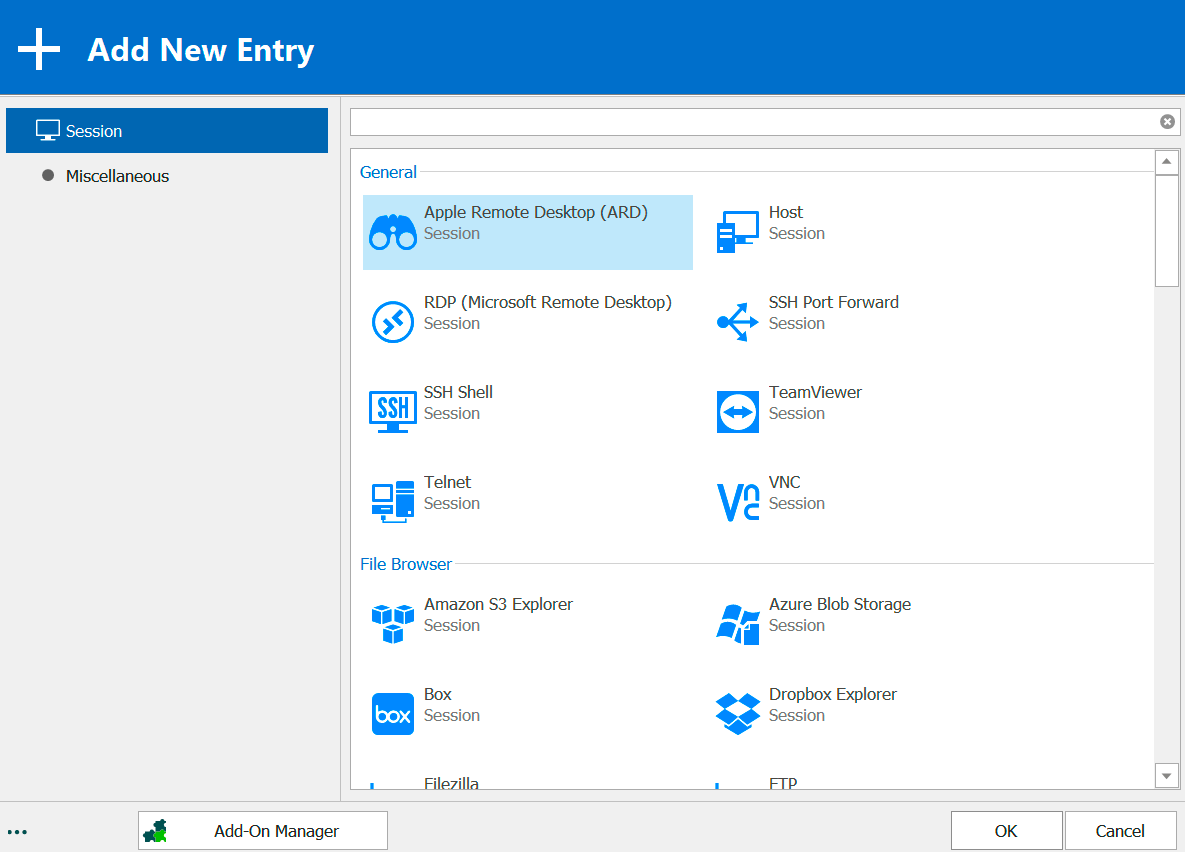
- In Remote Desktop Manager, click the + in the top-left of the window, then select Add Session.
- Select Apple Remote Desktop (ARD) as the session type, then select OK.
- Copy the VNC URL from the Addigy console, paste it into the Host field.
- Enter the sollisit admin username and password from Last pass.
- Go to the settings tab then look under the Advanced section for "When viewing this computer and another login the display..."
-
Change the option to "Share the display".


- Select Open Session.

You should now see the user's desktop.